 Shopify
Shopify Discount Code Not Working? Check These Rules
Check why a discount is rejected, applies to the wrong items or will not combine with another offer. Keep your pricing rules intact while you fix it.
A valid-looking code can still be rejected because the basket or shopper does not meet its rules. It may have expired, reached a use limit or been blocked from combining with another offer. Start by copying the exact checkout message. Then test the code with a basket that should qualify, rather than making the offer available to everyone just to remove the error.
Things to check first
- Open the discount and check dates, use limits, minimum spend and who can use it. Confirm the selected products or collections include the test item.
- Check for an automatic discount already applied to the basket. If offers should combine, review the combination settings on each discount.
- Test the offer on the right purchase type. An offer meant for one-time orders may not cover the subscription option the shopper selected.
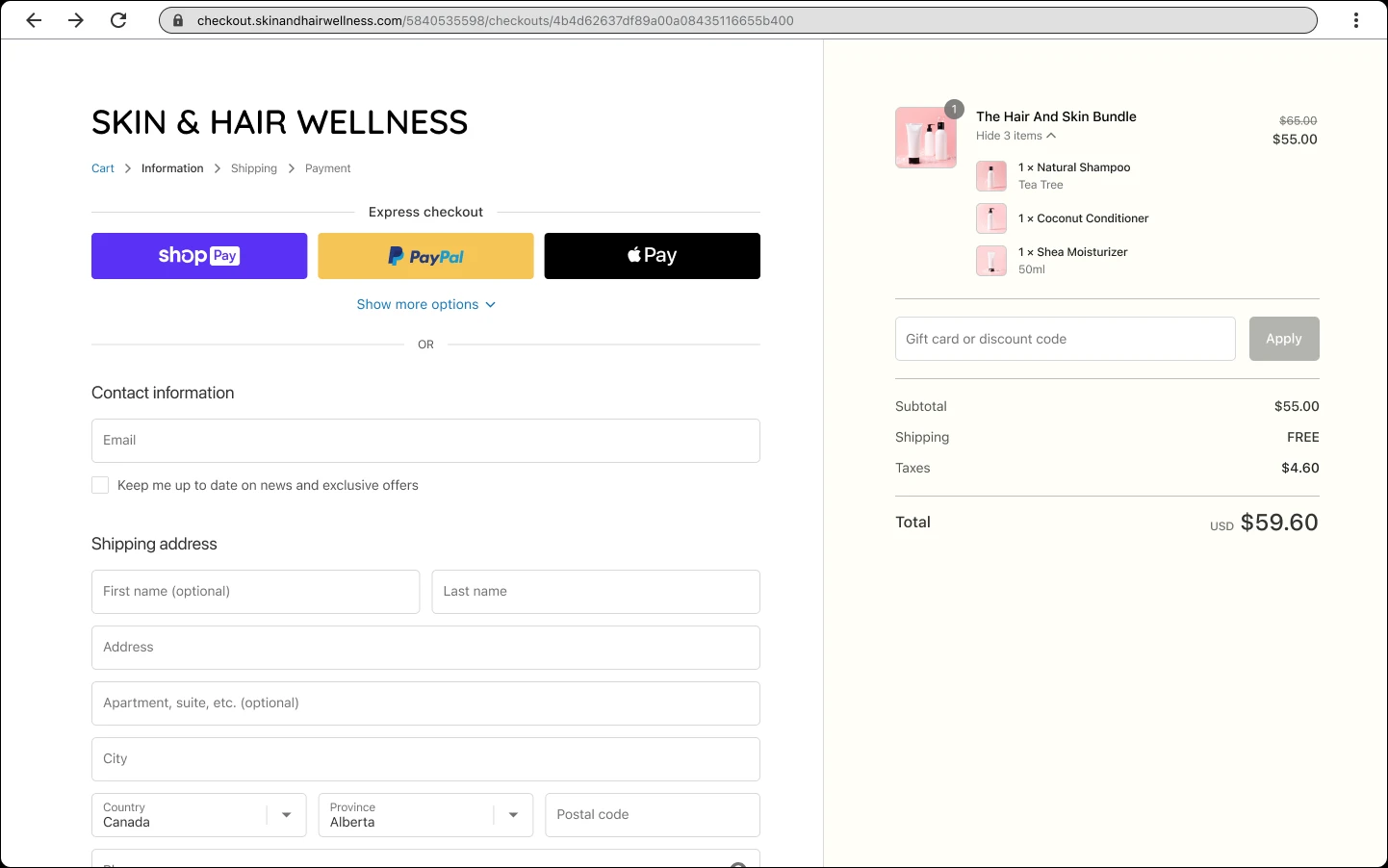
Shopify checkout example. Compare the final amount with the offer you intended. A code being accepted does not by itself prove the saving is correct.
Screenshot: Shopify. Example screen; yours may look different.What to ask the freelancer to do
- Check the rejected code and test basket
- Find the rule or app blocking the offer
- Repair the agreed discount behaviour
- Document qualifying and non-qualifying tests
Questions to ask before hiring
- Which customers and products should qualify?
- Is the fault in native settings or a discount app?
- Will the fix keep the existing use and spend limits?
Red flags
- Removes all limits without your agreement
- Promises every type of discount can combine
- Checks only whether the code is accepted
Agree what the job includes
- Describe the offer in one sentence: who gets what saving, on which products and until when. Give the specialist one basket that should qualify and another that should not. This makes it easier to separate a faulty rule from an offer working as designed.
- Ask them to check the final amount, not just the success message. Include automatic offers, delivery discounts and subscription products where relevant. Shopify’s supported combinations and your store setup can limit what is possible.
- Agree whether the job covers settings, app support or custom code. If a paid extension is proposed, ask why the current tools cannot handle the offer. Get the running cost and the exact change approved before it is installed.
What to send the freelancer
- Send the code, the checkout message and a written description of the intended offer. Hide private customer details.
- List discount, bundle and subscription apps. Note whether the problem started after an app or promotion changed.
- Save screenshots of the current rules and choose a short test window so live shoppers do not see unfinished offers.
How to check the work is done
- The agreed customer and basket receive exactly the intended saving, including any delivery discount.
- An excluded product, expired code and basket below the minimum spend remain excluded.
- Combined offers work only where agreed, and the handover explains the rules and any platform limits.
What may cost extra
- Writing a wider promotion plan or changing your prices is separate from repairing a code.
- App fees and features unavailable on your Shopify plan are not included unless agreed.
Common questions
Why will my Shopify codes not combine?
Each offer must permit the combination, and Shopify must support that combination for your setup. Check both discounts and any automatic offer already in the basket.
Can I fix this without a developer?
Often, yes. Dates, customer groups, selected products and spend limits are ordinary settings. A developer is more useful when an app or custom rule causes the fault.
More help: Source 1
Find help on Fiverr
Ready to hand it over? This freelancer offers help with the job covered in this guide. Look at their work and send them your brief to get a quote.
A. Bhatti
@bhattibhai86 · FiverrShopify discount and custom-code help
Bhatti offers Shopify bug fixes and custom coding. This is an option when a discount problem comes from theme or app code rather than a simple offer setting. Send the exact checkout message so he can confirm whether the job fits.
Before you hire: Agree the intended offer and exclusions. Ask whether his quote covers your discount app; do not assume a small theme-change package covers every promotion.
View service on Fiverr ↗Listing checked 2026-10-23. We have not hired this freelancer or tested their work.
Build my freelancer brief
Answer a few questions to make a clear job description you can send to a freelancer.