 WooCommerce
WooCommerce Product CSV Import Not Working? Check the File First
Prepare a WooCommerce product import, match spreadsheet columns correctly and avoid missing images or duplicate products.
A product file can upload successfully while still putting the wrong details in your shop. A price may land in the wrong field, an image link may be inaccessible or an update may create an extra product. A CSV is a plain text table, usually exported from a spreadsheet. The safest start is a few representative rows that include the types of products you actually sell. Get those right before running the whole file.
Things to check first
- Back up the store and make a separate copy of the source file. Export one correct product from WooCommerce as a reference for the built-in importer.
- Check headings, product IDs or SKUs, prices and image addresses. A SKU is the code you use to identify a product; agree which code will match an update to an existing item.
- Read the column-matching screen and test a small batch on a private copy. Check the product pages afterwards, not just the importer’s success count.
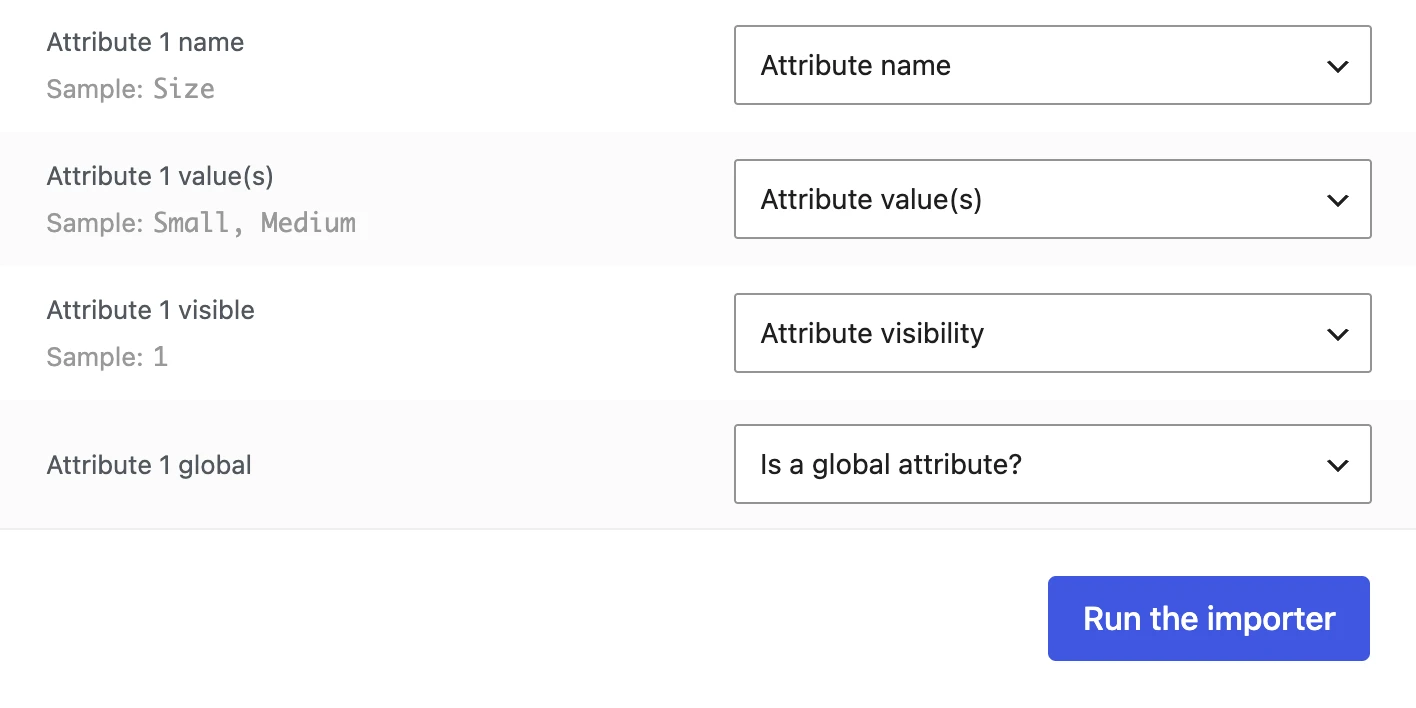
The WooCommerce importer matches file columns to product fields. Check the matches before running a small test; an ignored column will not fill the field you expected.
Screenshot: WooCommerce. Example screen; yours may look different.What to ask the freelancer to do
- Check and clean the sample CSV
- Match columns to product fields
- Test simple products and variants
- Run the agreed batches and record errors
Questions to ask before hiring
- How will updates find the existing product?
- Does this importer support our extra fields?
- What will happen if one row fails?
Red flags
- Imports the full file without a backup
- Counts success messages without checking products
- Deletes unmatched products without agreement
Agree what the job includes
- Agree whether this adds new products, updates existing ones or does both. Specify what happens to products absent from the file; never assume they should be deleted.
- Choose test rows that expose real cases: a product with no image, one with options and one that already exists. Ask the specialist to show how each is matched.
- Agree how errors are logged and corrected before the full run. Large files may need smaller batches or hosting changes, but that should follow evidence from a test.
What to send the freelancer
- Provide a redacted sample file, the intended product count and a list of fields to fill. Identify whether you use the built-in importer or another extension.
- List products and fields that must not change, including stock, sale prices and existing descriptions.
- Agree a backup, test copy and import window. Keep the original supplier file so any transformation can be checked and repeated.
How to check the work is done
- The agreed number of products is added or updated with correct names, prices, options and images.
- Running the agreed update process again changes the intended products rather than creating unexplained duplicates.
- Skipped rows and unsupported fields are listed. You receive the cleaned file, column rules and a record of the import.
What may cost extra
- Writing descriptions, creating product photos and choosing business prices are separate tasks.
- Customers, orders and active subscriptions are different records and need their own migration plan.
Sources checked 23 October 2026
Use this guide to agree the work and check the result.
Common questions
Will any spreadsheet work with the WooCommerce importer?
No. It needs the expected CSV structure and supported fields. Export a known product or use WooCommerce’s sample to compare your file.
Why did the products import without images?
Check the image addresses and how the image column was matched. The site must be able to access the files. Test one affected product before repeating the whole import.
More help: Source 1
Find help on Fiverr
Ready to hand it over? This freelancer offers help with the job covered in this guide. Look at their work and send them your brief to get a quote.
Haseeb Awan
@woo_expert · FiverrImport WooCommerce products from a file
Haseeb offers bulk product imports from CSV or Excel, including product options, images, prices and stock. He also offers file cleanup and help with larger catalogues. Send a small sample of your file to check what the job needs.
Before you hire: Agree the product and variation counts. Ask for a small test import first, checks for repeated products, and a backup before the full upload.
View service on Fiverr ↗Listing checked 2026-10-23. We have not hired this freelancer or tested their work.
Build my freelancer brief
Answer a few questions to make a clear job description you can send to a freelancer.