 WordPress
WordPress Accessibility Problems? Plan the Right Fixes
Check whether people can use your menus, forms and key pages with a keyboard and assistive tools. Ask for fixes people can test, rather than a score alone.
A menu can look fine but be impossible to open with a keyboard. A form can show a label on screen but fail to tell a screen reader what the box is for. Accessibility work finds and removes these barriers. Start with the tasks visitors need to finish, such as reading a service page, sending a form or buying a product. Changing colours alone is not a full fix.
Things to check first
- Try the main menu and a test form using Tab, Shift+Tab, Enter and Escape. Can you see which control has focus, reach every step and leave a popup? Do not submit real orders during the check.
- Zoom the page and look at headings, links, form labels and error messages. Can you still read and use the page without losing key controls? These first checks help find problems, but they are not a complete assessment.
- List the theme, page builder and plugins that provide the affected controls. A third-party booking widget may need its own fix or vendor support. Save examples of the exact barrier rather than only a scanner score.
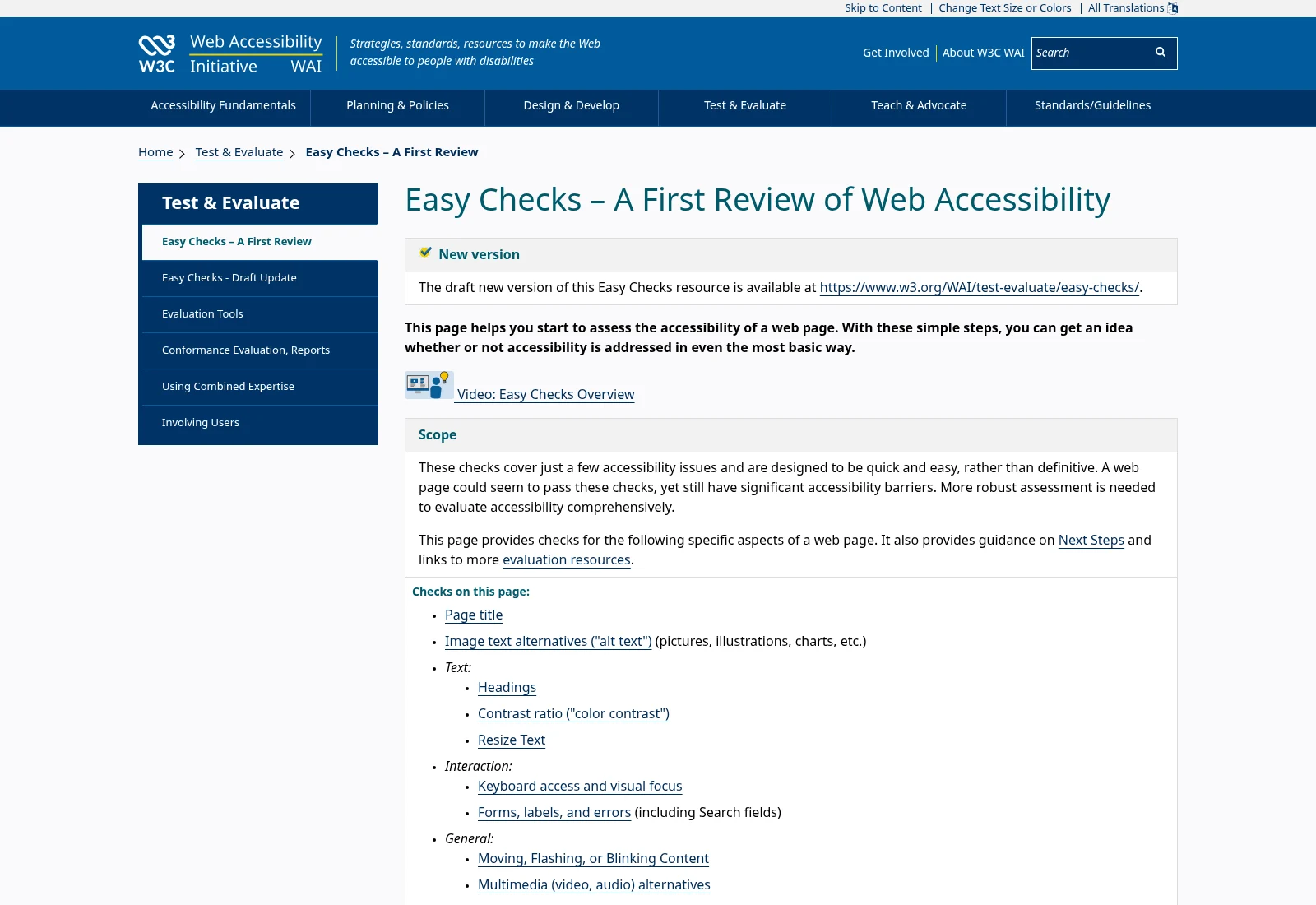
W3C’s first checks help find common barriers. The guide says these checks are not a full evaluation. Ask for manual checks of the actual forms, menus and tasks on your site.
Documentation screenshot: W3C Web Accessibility Initiative. Example screen; yours may look different.What to ask the freelancer to do
- List barriers in agreed pages and tasks
- Fix the affected theme, content or controls
- Test keyboard and screen-reader tasks
- Document remaining barriers and editor guidance
Questions to ask before hiring
- Which manual keyboard and screen-reader tasks are included?
- Will fixes survive a theme or plugin update?
- Which third-party barriers are outside your control?
Red flags
- Offers only a toolbar or overlay as a complete cure
- Promises full compliance from one automated score
- Tests the homepage but ignores forms and popups
Agree what the job includes
- Agree the pages, templates and tasks to test, plus the accessibility standard used to review them. WCAG is a set of guidelines for making web content easier to use. Include mobile menus, popups and error states, not just a static homepage.
- Ask for manual keyboard and screen-reader checks alongside automated scans. W3C explains that quick checks and tools cannot establish full accessibility on their own. Fix the page or component causing the barrier; adding a toolbar does not replace that work.
- Prioritise blocked tasks, then test the changed components across their shared templates. Agree who handles third-party widgets, new content and future theme updates. A report should separate issues fixed in the site from issues passed to a supplier.
What to send the freelancer
- Send important visitor tasks, affected page links and any existing report. Include the browser and assistive tool used when a barrier was found.
- Provide a staging copy and made-up form records. Agree how the freelancer will change shared theme or plugin code without losing it on the next update.
- Name someone who can review content changes and check the finished task. Where possible, include feedback from people who use assistive tools.
How to check the work is done
- The agreed keyboard and screen-reader tasks work on the checked pages. The report shows what was tested and how each confirmed barrier was fixed.
- Forms identify their fields and errors clearly. Menus and popups can be opened, used and closed without trapping keyboard users.
- Unfixed third-party issues and untested areas are listed. You receive notes for editors and a way to check the same tasks after an update.
What may cost extra
- A small set of fixes or a high scanner score is not a legal guarantee or a certificate covering the whole website.
- Rewriting all content, captioning a video library and replacing an inaccessible external booking tool need separate scope.
Sources checked 23 October 2026
Use this guide to agree the work and check the result.
Common questions
Does a WordPress accessibility plugin fix everything?
No. A plugin may help with some tasks, but it cannot automatically correct every label, interaction or content decision. Ask for checks of the actual tasks visitors need to complete.
Will fixing scanner errors make my site accessible?
It can remove some barriers. Other problems need a person to test the page, especially keyboard use, screen-reader output and error handling. Agree both tool-based and manual checks.
More help: Source 1
Find help on Fiverr
Ready to hand it over? This freelancer offers help with the job covered in this guide. Look at their work and send them your brief to get a quote.
Fawad Ahmed
@fawadahmedsyed · FiverrWebsite accessibility fixes
This listing covers accessibility testing and fixes for issues such as labels, contrast and page structure. Confirm your WordPress theme and manual keyboard and screen-reader tests. We do not endorse its legal-protection claims.
The listing showed 55 reviews when checked. Reviews cover a range of jobs; we have not independently tested this seller's work.
Before you hire: Ask for task-based checks and a list of fixed and remaining barriers. Get shared templates, third-party widgets and update-safe fixes included in the quote.
View service on Fiverr ↗Listing checked 2026-10-23. We have not hired this freelancer or tested their work.
Build my freelancer brief
Answer a few questions to make a clear job description you can send to a freelancer.